I opened a chat window on a Tuesday afternoon with a simple goal: use a chat gpt picture generator to make a few useful images without learning a complicated design program. I needed a clean social graphic, a presentation illustration, and a casual image for a weekend travel plan. The interesting part was not whether the tool could produce something attractive. It was whether the results were accurate enough to use after a reasonable amount of human editing.
That distinction matters. AI image tools are good at turning a rough idea into a visual starting point, but they are not reliable art directors, fact-checkers, or brand managers. A generated image can look polished while showing the wrong number of objects, misspelling text, or quietly changing an important detail. I tried it so you do not have to waste your afternoon.
What a chat gpt picture generator actually does
A chat gpt picture generator turns a written description into an image. Depending on the available account and product features, you might describe a scene, request a style, revise an existing result, or ask for several variations. You do not need to know terms such as diffusion model or rendering pipeline to get started. A clear description is more useful than technical vocabulary.
My first prompt was deliberately ordinary: “Create a bright, modern illustration of a person organizing sticky notes beside a laptop, with blue, green, and yellow accents, landscape orientation, and plenty of empty space on the right for a headline.” The first image was recognizable and visually balanced. It also placed some sticky notes at awkward angles and made the laptop look more decorative than realistic. For a blog header or internal presentation, that was close enough to revise. For an advertisement, it needed inspection.
The tool was strongest when I asked for composition rather than a finished campaign. “Leave room for text” worked better than asking it to add a long headline. AI-generated lettering remains one of the most common failure points. Short labels sometimes appear correctly, but a sentence can become a row of attractive nonsense.
A repeatable prompt workflow for beginners
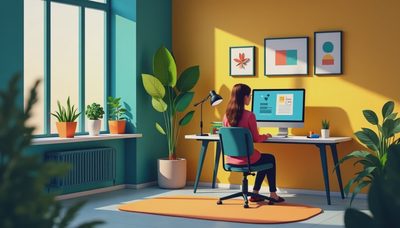
A useful chat gpt picture generator prompt can follow a simple five-part structure. Start with the subject, explain the setting, define the visual mood, specify the layout, and identify what must not appear. For example: “A realistic but friendly home office desk with a notebook, coffee mug, and closed laptop; morning window light; warm neutral colors; square composition; no visible logos, no readable personal information, and no extra hands.”
The final restriction is important. Negative instructions do not guarantee perfection, but they reduce predictable problems. I also found it helpful to mention the intended use. “For a LinkedIn post” encourages a clean, legible composition, while “for a phone wallpaper” suggests a taller arrangement with less visual clutter.
After the first result, revise one or two elements at a time. If you change the setting, style, lighting, objects, and camera angle in one message, it becomes difficult to understand why the next image improved or deteriorated. I usually kept a short record of the prompt, the best version, and the edits still needed. That took less than five minutes and prevented me from circling through random requests.
A practical sequence looks like this:
- Describe the main subject in plain language.
- Add the audience and intended use.
- Set orientation, colors, and empty space.
- Remove logos, sensitive information, and unnecessary text.
- Check hands, faces, product details, signs, and object counts.
- Export only after comparing the image with the original brief.
Where the tool saved time
The biggest benefit was avoiding the blank canvas. A chat gpt picture generator produced three directions for a presentation cover in a few minutes. None was final, but one gave me a useful arrangement: a large object on the left, a soft background, and open space for the title. Recreating that from scratch in Canva would not have been difficult, but deciding what to make would have taken longer.
This was especially helpful for low-stakes visuals. I could request a simple illustration for a checklist, a background texture for a newsletter, or a general concept image for a meeting discussion. The tool helped me think visually before committing to a design. It also made it easy to explore alternatives, such as a flat editorial style, a paper collage look, or a realistic workspace scene.
For personal projects, the same approach worked for a packing-list cover, a recipe card background, and a rough image of a weekend itinerary. I would not use the result as a map or factual travel illustration, but it was perfectly useful as a mood-setting visual. This saved time, but not in the way I expected: the value came from rapid ideation, not from receiving a finished asset.
What went wrong during the test
The most obvious errors appeared in details. A requested set of four books became five. A coffee cup handle changed sides between revisions. A desk lamp acquired an extra bend, and a supposedly blank notebook contained marks that looked almost like writing. These defects were easy to miss when viewing a thumbnail and obvious when the image filled a presentation slide.
Brand work requires even more caution. I would not ask an image model to reproduce a company logo, package label, legal disclaimer, or product specification and then publish the result without rebuilding those elements separately. The safest workflow is to generate the background or general scene, then add approved text and brand assets in Canva, Figma, Adobe Express, or another design tool.
Privacy deserves attention as well. Do not paste confidential campaign plans, client information, private photographs, or unreleased product details into a tool unless your organization has approved that workflow. A generic description usually provides enough creative direction. “A small team around a conference table” is safer than uploading a real meeting photo and asking the system to alter it.
Comparing the tool with familiar design apps
A chat gpt picture generator is best at exploration. Canva is usually better for arranging text, applying a brand kit, resizing a finished layout, and producing multiple social formats. Adobe Photoshop or Express offers more precise control over layers and retouching. Stock libraries remain faster when you need a factual image of a real object, location, or person and do not want invented details.
The cost question depends on how often you create visuals. A free option can be enough for occasional brainstorming, while a paid AI plan might make sense for someone producing several concepts each week. I would not subscribe solely because the first generated image looks impressive. Test five real tasks first: a header, a square post, a presentation visual, a product-free background, and a revision request. If the outputs regularly save meaningful editing time, the subscription has a clearer case.
My practical recommendation
Use a chat gpt picture generator as a creative assistant, not an automatic publishing department. Give it a concrete brief, request a composition, and inspect the result at full size. Keep text, logos, legal language, factual diagrams, and sensitive material under human control. When the image is only supporting a low-stakes idea, the speed can be genuinely useful.
I would use this again for one specific task: generating several visual directions before opening a design application. I would not trust it to create a final infographic, a precise product image, or a factual map without substantial rebuilding. The first draft came from AI. The judgment did not. That is the useful boundary for a chat gpt picture generator: let it shorten the distance from an empty page to a workable idea, then do the careful work yourself.
No notes yet — be the first to inscribe one.