The chatgpt ai image generator is useful when you need a quick visual starting point but do not have time to learn Photoshop, Illustrator, or a complicated design platform. I tested it with ordinary tasks: creating a blog illustration, developing social media concepts, and making a rough visual for a presentation. The results were better when I treated the tool as a creative assistant rather than a finished-art department. It saved time on exploration, but human judgment still decided what was usable.
What the ChatGPT image tool actually does
Inside ChatGPT, you can describe an image in everyday language and ask the system to create it. You can request a new scene, revise an existing generated image, change the color palette, add or remove objects, or make a version suited to a specific format. Depending on your ChatGPT plan and the features currently available to your account, access and usage limits can differ, so the interface is worth checking before planning a large campaign.
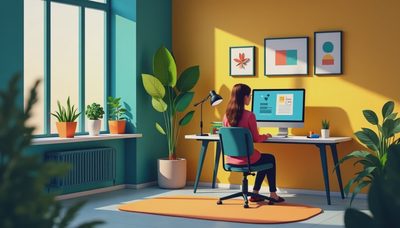
The chatgpt ai image generator works best when the request includes a subject, setting, mood, composition, audience, and output purpose. “Make a nice office picture” leaves too much open. “Create a clean editorial illustration of a person organizing sticky notes at a desk, warm morning light, muted blue and orange palette, wide horizontal composition, no readable text” gives the model a clearer job.
Here is what the tool actually did in my first test: it produced several attractive concepts quickly, but small details needed inspection. A notebook might contain strange lettering. A laptop screen could show an unintelligible interface. Hands, signs, and repeated objects were not always convincing. For a blog header or brainstorming board, that was acceptable. For a product screenshot or factual infographic, it was not.
A repeatable prompt workflow
I get more reliable results by building the prompt in stages instead of writing one long paragraph. Start with the main subject and the action. Then add the environment, visual style, framing, colors, and restrictions. Finish with the practical use, such as “designed for a 16:9 presentation slide” or “leave empty space on the left for a headline.”
My basic process looks like this:
- Write the purpose first. Explain whether the image is for a blog, email, presentation, thumbnail, or personal project.
- Describe the composition. Say what belongs in the foreground, background, left side, or right side.
- Add style cues carefully. “Flat editorial illustration” is more useful than stacking ten unrelated art styles.
- Remove predictable problems. Ask for no logos, no readable text, no extra fingers, or no identifiable private information when appropriate.
- Generate a draft, inspect it at full size, and request one focused revision.
The chatgpt ai image generator responded better when I changed one element at a time. Asking it to replace a red notebook with a green one was straightforward. Asking it to replace the notebook, redesign the room, change the lighting, add three people, and fix the perspective in one message produced less predictable results. Small revisions also made it easier to understand which instruction caused a problem.
For branded work, I would start with a rough concept rather than upload confidential materials. Do not paste private client information, unreleased product details, or personal documents into an AI tool without understanding the applicable privacy settings and workplace rules. A generic mockup can communicate the idea without exposing sensitive content.
Where it saved me time
The biggest gain was not making a final image in seconds. It was getting past the blank page. When I needed five concepts for a monthly newsletter, the chatgpt ai image generator gave me visual directions that I could discuss with a designer or use as internal references. I spent roughly fifteen minutes reviewing options instead of staring at a blank slide and searching stock-photo sites.
It was also helpful for turning abstract topics into visual metaphors. A report about simplifying workplace processes could use an illustration of tangled lines becoming a clear path. A recipe post could use a warm kitchen scene with ingredients arranged around an empty bowl. These images were not evidence, but they helped shape the article and gave the layout team a direction.
The tool can be practical for small businesses and freelancers who need temporary visuals before investing in custom design. A local service provider might create a few social post concepts, while a student could visualize a presentation theme. The final material still needs review for accuracy, accessibility, licensing questions, and consistency with the organization’s identity.
This saved time, but not in the way I expected. The fast part was ideation. Choosing the strongest result, correcting awkward details, cropping it properly, and writing useful surrounding copy still took most of the work.
Common problems and how to fix them
Text inside generated images remains a major weakness. If a poster needs an exact phone number, event date, or headline, I would create the background in the chatgpt ai image generator and add the real text later in Canva, PowerPoint, Figma, or another design program. This two-step method is faster than repeatedly asking for perfect lettering.
Consistency can also be difficult. If you need the same character in six scenes, the face, clothing, or proportions may shift between generations. Give the character a short description, keep the visual style stable, and expect to edit or select carefully. For a serious campaign, a human designer or a specialized workflow will usually provide better control.
Avoid using an image as a substitute for factual communication. A generated picture of a medical device, legal document, financial chart, or technical component can suggest the wrong details. Use it as decoration or a concept image only when accuracy is not being implied. Alt text should describe the meaningful content, not claim that the image shows something it does not.
Is it worth using?
I would use the chatgpt ai image generator again for brainstorming, blog illustrations, internal presentation concepts, and low-risk social media ideas. I would not make it my only tool for logos, packaging, exact product images, data visualization, or work requiring strict brand consistency.
A sensible test does not require a long subscription commitment. Choose one real task, prepare three prompt versions, compare the results, and record how much editing remains. If the tool gives you a usable direction in ten minutes, it has earned a place in that workflow. If you spend an hour repairing distorted objects and unclear text, a stock library or human designer may be the better choice.
Before publishing, check faces, hands, words, signs, logos, shadows, and background objects. Confirm that the image does not accidentally resemble a real person or imply a real event. Then crop it for the actual channel, add readable text outside the image, and keep a note of how it was created if your workplace requires disclosure.
The first draft came from AI. The judgment did not. That is the useful boundary: let the tool generate options, then decide whether an option is accurate, appropriate, original enough, and worth showing another person. I tried it so you do not have to waste your afternoon, and my recommendation is simple: use it to start visual work, not to avoid thinking through the work.
No notes yet — be the first to inscribe one.