ChatGPT image generation is useful when you need a visual starting point but do not have time to learn a complicated design program. I tested it with ordinary marketing tasks: social post concepts, presentation visuals, simple product scenes, and a café-inspired travel graphic. The results were uneven, but the tool was more useful as a fast sketch partner than as a finished design department.
That distinction matters. You still need to check spelling, layout, brand rules, image rights, and whether the picture communicates the intended idea. The first draft came from AI. The judgment did not.
What ChatGPT image generation actually does
At a basic level, you describe an image in natural language and the tool creates a visual interpretation. You can request a subject, setting, mood, color palette, composition, aspect ratio, and intended audience. You can also ask for revisions instead of starting over, such as moving an object, changing the background, or making the image feel more professional.
For example, a useful request might be: “Create a clean, horizontal illustration of a marketing team planning a quarterly campaign in a bright office. Leave open space on the left for a headline. Use navy, cream, and muted orange. No readable text in the image.” That prompt gives the system more direction than “make a marketing picture.”
The strongest use case is ideation. A blank slide can be intimidating, while three rough visual directions give you something concrete to evaluate. ChatGPT image generation can also help a small business owner imagine a landing page, a freelancer build a mood board, or a student create a visual reference for a presentation.
Here is what the tool actually did in my test: it produced attractive compositions quickly, but it sometimes added unnecessary objects and made the image feel more polished than the underlying idea deserved. I had to remove distracting details and rewrite the brief before the result became useful.
A simple workflow that saves time
Start with the job, not the image style. Write one sentence explaining where the visual will be used. “A LinkedIn post about reducing meeting time” is a better starting point than “a futuristic business image.” Then add the audience, emotional tone, subject, composition, colors, and anything that must be excluded.
Use this five-part prompt structure:
- State the format, such as a square social graphic, wide presentation image, or vertical phone screen.
- Describe the main subject and the action taking place.
- Specify the visual mood, color direction, and level of realism.
- Reserve space for text if a designer will add copy later.
- List exclusions, including logos, watermarks, extra fingers, fake readable text, or cluttered backgrounds.
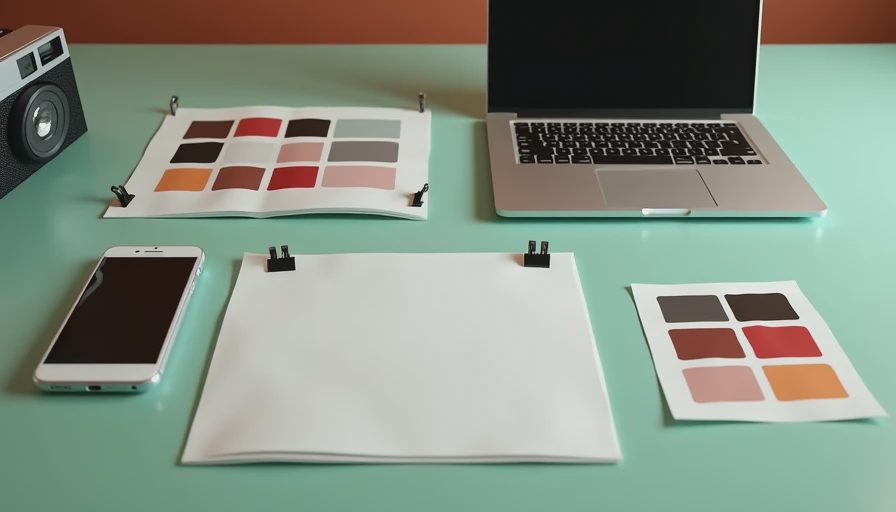
A prompt for a report might read: “Create a wide, realistic editorial-style image of a desk with organized meeting notes, a laptop, and a small timer. Use soft morning light and neutral colors. Keep the right third visually quiet for a chart overlay. Do not include readable words, logos, or brand marks.”
After the first result, revise one or two variables at a time. If you change the subject, color, camera angle, and background together, you will not know which instruction improved the image. ChatGPT image generation works better as a conversation when each revision has a clear purpose.
This saved time, but not in the way I expected. I spent less time searching stock-photo libraries and more time deciding what the image needed to say. That is a worthwhile trade for brainstorming, but it is not automatic creative strategy.
Where the results are useful
For content work, ChatGPT image generation is a practical option for concept boards, draft thumbnails, newsletter headers, and internal presentation visuals. It can show a client two or three possible directions before anyone spends an hour polishing a design. It is also handy for creating a consistent set of rough scenes when a stock library has nothing that matches the brief.
For personal projects, you could request a packing-list illustration, a recipe mood board, or a simple map-inspired image for a weekend trip. I would not use an AI-created map for navigation, but a decorative travel visual can make a planning document easier to scan. The same principle applies to educational materials: use the image to support an explanation, not to replace factual checking.
The tool is less reliable when the image depends on exact information. Charts, diagrams, signs, screenshots, product labels, and long blocks of text are risky. Generated lettering can look almost correct while containing misspellings or meaningless characters. If accuracy matters, create the background with AI and add the words in Canva, PowerPoint, Figma, or another design tool.
ChatGPT image generation is also not a substitute for licensed photography when a campaign needs a real person, a specific product, or a legally documented setting. A fictional image may be fine for an internal draft, but a public advertisement needs a more careful review of rights, disclosures, and brand expectations.
Common problems and how to fix them
The first problem is vague composition. “A professional office” can produce a generic room with no clear focal point. Name the subject, camera distance, direction of light, and empty space. “A close-up of hands arranging three printed cards on a wooden desk, viewed from above” gives the model a much narrower target.
The second problem is accidental text. Avoid asking the image model to place a headline inside the picture unless the wording is very short and you are prepared to inspect every letter. Add text afterward. This also makes resizing easier for different channels.
The third problem is visual inconsistency. If you need five images for a campaign, save the successful description and reuse its structure. Keep the palette, lighting, subject scale, and perspective similar. ChatGPT image generation can produce related images, but it may still change clothing, objects, or proportions between attempts. Compare the set side by side before publishing it.
The fourth problem is over-editing. It is easy to keep requesting tiny changes until you lose the original idea. I set a practical limit of three revision rounds. If the composition is still wrong after that, I rewrite the prompt from scratch or use a stock image instead.
A five-minute quality check
Before using an AI-created visual, inspect it at full size. Look for warped hands, inconsistent shadows, strange reflections, duplicate objects, distorted screens, and text that only appears correct when viewed small. Check whether the image fits the actual audience and whether it accidentally resembles a real company, product, or person.
Then test the image in its intended layout. A beautiful landscape may become useless when cropped into a square. A busy background can compete with a headline. A low-contrast subject may disappear on a dark webpage. Ask a coworker or friend what they notice first; their answer often reveals whether the visual supports the message.
For business use, keep a record of the prompt, date, edits, and final approval. Do not paste confidential client information, unreleased product details, private employee data, or internal screenshots into a public AI service. Company policies and tool terms can change, so confirm the rules before using generated images in paid campaigns.
Is it worth using?
I would use ChatGPT image generation for fast visual exploration, rough presentation art, and social content concepts. I would not rely on it for exact diagrams, text-heavy graphics, technical illustrations, or final brand photography without human review.
The best workflow is deliberately modest: describe the communication goal, generate a few directions, revise with specific instructions, and finish the work in a normal design tool. That approach treats AI as a quick creative assistant rather than an authority. I tried it so you do not have to waste your afternoon, and my conclusion is straightforward: use it when a strong first visual is valuable, but keep a human responsible for what the image means and where it appears.
No notes yet — be the first to inscribe one.